How you can fix planets like Hoth not loading in Star Wars the Old Republic. A step by step guide with every known solution to fix planets not loading in SWTOR.
Table of Contents – Click to Jump
How to Fix
There are many different issues that can cause Planets to stop loading or freeze your computer in Star Wars the Old Republic such as Hoth or Ilum. This guide will teach you every known solution to fix this issue in 2025.
Minimum Requirements to Run SWTOR
The first thing to check when you play SWTOR is that your computer can actually handle playing the game.
Star Wars the Old Republic made several major game updates in 2024 that have increased the minimum requirements that your computer needs to play the game, including a Graphics Card or Integrated Graphics that has at least 1 Gigabyte of VRAM.
Intel UHD is NOT a Graphics Card! Intel UHD is also known as ‘integrated graphics’ which is different.
If your computer does not have at least 1 GB of VRAM available, you will not be able to load planets such as Hoth or Ilum with SWTOR’s new minimum requirements, and you MAY have to upgrade your computer to continue playing the game.
Windows Operating System: Windows 10 or later – 64-bit
MAC Operating System: MacOS 14 Sonoma or newer with M-Series Chipset (M1, M2, etc…)
Processor: AMD Athlon 64 X2 Dual-Core 4000+ or better / Intel Core 2 Duo 2.0GHz or better
Memory: 6 GB RAM
Graphics: Star Wars: The Old Republic requires a video card that has a minimum of 1 GB of on-board RAM as well as support for Shader 3.0 or better. Examples include: Intel HD 3000 or better/AMD Radeon HD 7450/Nvidia GeForce 610
Network: Broadband Internet connection
Storage: 75 GB available space
How to check your Computer System:
PC: Press the Windows key and search or type in dxdiag , run the program and compare each of your listed settings to the list above.
Mac: Click the Apple menu (the icon in the top-left corner of your screen) and select “About This Mac” to see your macOS version, processor, and memory, or choose “System Settings” (or “System Preferences” on older macOS versions) > General > About.
Lower Graphics Settings
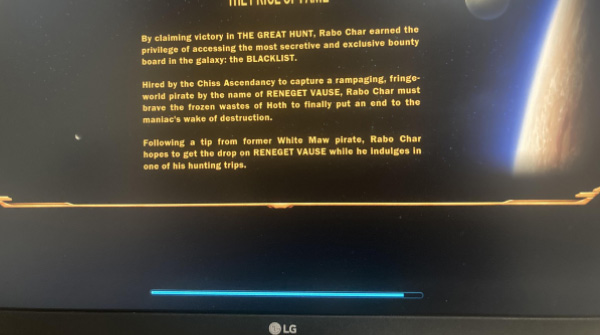
Have you ever been playing SWTOR just fine, until you travel to a new planet and can see the loading screen, only for the Blue progress bar at the bottom to never finish loading (pictured above). The most common cause of this issue is related to your Computer not having enough graphics memory to keep SWTOR going.
Not all computers may be powerful enough to run Star Wars the Old Republic on planets such as Hoth or Ilum, especially computers or laptops that have 2 GB or less of VRAM (Graphics card memory) or those that are playing on Integrated Graphics (Intel UHD) instead of an AMD or NVIDIA Graphics Card.
If you are playing on a graphics card that has 2 GB or less of memory (such as a 1GB graphics card) or are playing on a computer or laptop using Integrated Graphics, you can attempt the following FIX suggested by EA Helpdesk to load planets:
- Before travelling to a planet, open your SWTOR preferences and choose the following options
- In Interface: Turn ON auto-skip movies
- In Graphics:
- Change the game to Full Screen
- Change the Preset to Low
- Change the Resolution to 1024 x 768
- Change the Frame Rate to 30
- Turn off Conversation Depth of Field
- Drag the Tree Quality and Grass Quality sliders to 0
- Change Texture Quality to Low and Visible Character Limit to Low
- Turn Anti Aliasing OFF
After you have made these adjustments to the Preferences Window. Close SWTOR completely, and then reopen the launcher, log-in and play the character you wish to travel to the Planet, attempt to load the planet.
Once you can play on the Planet, do not change any graphics settings until you leave the planet as to prevent your character from getting stuck on the Planet permanently.
If your computer already runs SWTOR on the lowest possible settings, the only way to possibly load planets such as Hoth or Ilum are to run the game on Windowed Mode at 800×600 or 1024×768 resolution.
If that does not work then your computer is now considered ‘too old’ to play SWTOR.

Integrated Graphics Drivers
If you are gaming on a Laptop or even some desktop computers using Intel technology (such as Intel UHD), your computer may be using Integrated Graphics instead of an actual Graphics Card.
This is common on any Windows 10 or 11 computer or Laptop running Intel Arc or Iris Xe Graphics.
Make sure that your Integrated Graphics has at LEAST 1 Gigabyte of Memory, otherwise your computer will not be compatible with SWTOR.
If you are running Integrated Graphics, especially Intel Arc or Iris Xe on your computer, you NEED to download and update your Integrated Graphics to version 32.0.101.69xx or 32.0.101.70xx for SWTOR.
To update to 30.0.101.69xx or 30.0.101.70xx go here https://www.intel.com/content/www/us/en/download/785597/intel-arc-iris-xe-graphics-windows.html
Download and install the latest version and SWTOR should be able to load all planets again.
Windows 11 ONLY – Update 24h2
If you are using a Windows 11 computer, check to see if your computer is running the 24h2 Windows Update. Some players have reported that Windows 11 Update 24h2 stops SWTOR from loading the game.
To remove 24h2 from Windows 11, follow these steps:
- Open Settings: Click the Start button and select Settings.
- Go to Windows Update: Click on Windows Update in the left-hand menu.
- Select Update history: Scroll down and click on “Update history”.
- Uninstall updates: Find and click on the “Uninstall updates” button.
- Remove 24H2: Locate and select the “24H2” update and click the uninstall button.
- Restart: Follow the prompts and restart your computer to complete the process.
Repair Game Files
If you are using Integrated Graphics, or an AMD or NVIDIA Graphics Card with 2GB or more or VRAM, then it is likely that your installation of SWTOR has a corrupted file.
Follow the steps below to help repair your SWTOR game files.
SWTOR.com Launcher
If you have installed SWTOR from the official swtor.com website or from EA/Origin, you can repair your game files by opening the launcher and clicking the settings icon in the corner of the window.
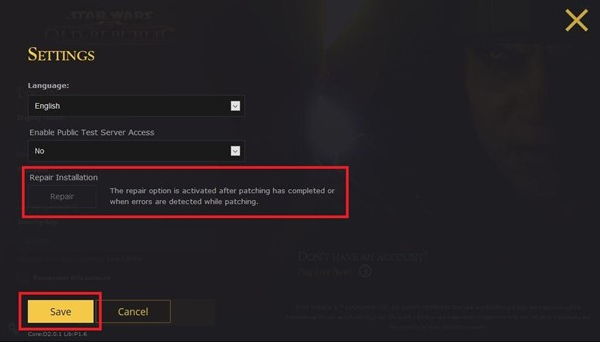
Once you have opened the Settings Menu, click the Repair Installation button and click Save. The SWTOR launcher will now attempt to verify and fix any broken game files that are stopping you from logging in.
Using SWTOR on Steam
If you are using Steam to play SWTOR, you can use Steam’s inbuilt game repair tool to Repair your installation of SWTOR.
Open Steam and find the game in your Steam Library, right click the game and click properties.
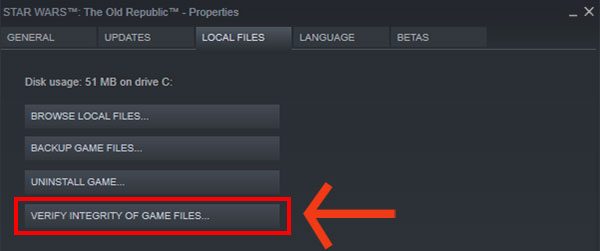
Find the tab that says Installed Files or Local Files and then click the Verify Integrity of Game Files button.
Steam will now attempt to verify and fix any broken game files that are stopping you from logging in.
Call or Email Support
If none of the above solutions work for you, it may be time to Call or Email SWTOR support.
F2P and Subscribers can email SWTOR support at the following address: support@swtor.com
If you choose to email SWTOR support, please note it may take up to 48-72 hours to recieve a reply. Make sure that the Email you use to contact support is the same email as your swtor account, and that you write your account Username inside the Email which helps support identify the SWTOR account with the issue.
I personally suggest calling SWTOR Support if you live in a country that offers phone support.
EA Helpdesk Phone Numbers
- USA: 1-(855)-345-2186
- UK: +44 (0)208 1969 890
- France: +33 (0) 4 81 68 10 51
- Germany: + 49 (0)221 8282 9212
- Other Countries
Enjoy my content and want to see more? You can support me by following me on Twitter or Join the Discord Community!
May the Force be with you ❤

If you liked my Content, consider tipping
to keep TodayinTOR.com Online!

Become a part of the SWTOR Community!
Read More
- SWTOR Galactic Season 10 Guide
 Complete Guide to Galactic Season 10 Secrets of the Syndicate, all rewards and achievements.
 - SWTOR PH4-LNX Companion Guide
 Companion Guide for PH4-LNX in SWTOR, including Story, Customization, Reputation & Achievements!
 - SWTOR Dantooine Spring Event Guide 2026
 Dantooine Spring Abundance Festival Guide in SWTOR. Including all Quests, Rewards and Achievements.
 - SWTOR Altuur Zok Adon Companion Guide
 Companion Guide for Altuur Zok Adon in SWTOR, including his Story Quests, unique Abilities & Customizations!
 - SWTOR 7.8.1 Master’s Enigma Update News
 Everything about SWTOR 7.8.1 Masters Enigma, including story, Date Nights and new content.
 - SWTOR Continue the Fight Bundle
 Everything you need to know about the Continue the Fight Bundle in SWTOR.
 - SWTOR 2026 Roadmap
 Everything we know coming to SWTOR in 2026 including Story, DirectX 12 and 8.0 Expansion.
 - How to Make Credits in SWTOR 2026
 How to earn Millions of Credits as a F2P or Subscriber in Star Wars the Old Republic.
 Today in TOR