How to fix the Login Service is currently unavailable glitch bug in Star Wars the Old Republic.
Table of Contents – Click to Jump
How to Fix
There are many different issues that can cause the Login Service is currently unavailable bug in Star Wars the Old Republic. This guide will teach you every known solution to fix this issue in 2025.
The most common issue!
You may have typed your password OR security key incorrect several times in a row.
Sometimes if you type the wrong password or security key multiple times in a row, the launcher will glitch and give you the ‘login service unavailable’ Error Message instead of the ‘Wrong Password’ Message.
If this happens, and you KNOW you typed the wrong username and password/security key. Close the Launcher, wait 10 minutes, and then attempt to login again.
If it still does not work, try the following:
Make sure your 2FA App and Computer are the same Timezone
One of the most common issues that give players the Login Service issue is incorrectly set Timezone settings on their phone or computer. If you are using either the SWTOR mobile phone Authenticator or a third-party app such as Google Authenticator, make sure the timezone on your phone matches the timezone on your Computer. This bug can also occur on Laptops as well, so make sure to Synchronise your Computer and your phones timezone to the internet.
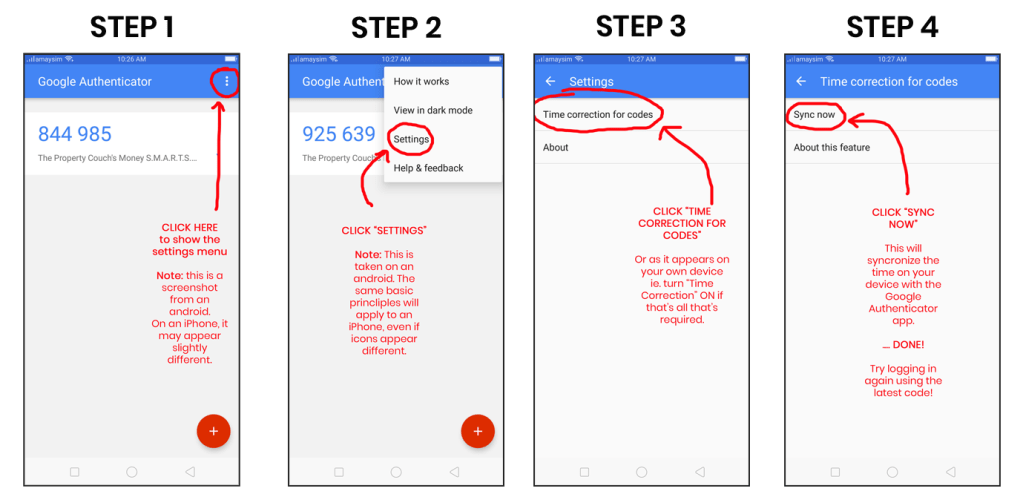
If you are using the Google Authenticator, you can manually resynchronise your phone’s timezone in the Google Authenticator app itself by following the instructions given above.
If your phone or computer is set to a different timezone, it can stop you from logging in and will give the error.
Turn off VPN or IP Routing
If you are using a VPN to play Star Wars the Old Republic, wait 5 minutes between each attempt to Log-In to play the game. There was a security issue that occured against SWTOR on October in 2024 that has caused the game to require extra security when logging in from commonly used VPN hosts or locations.
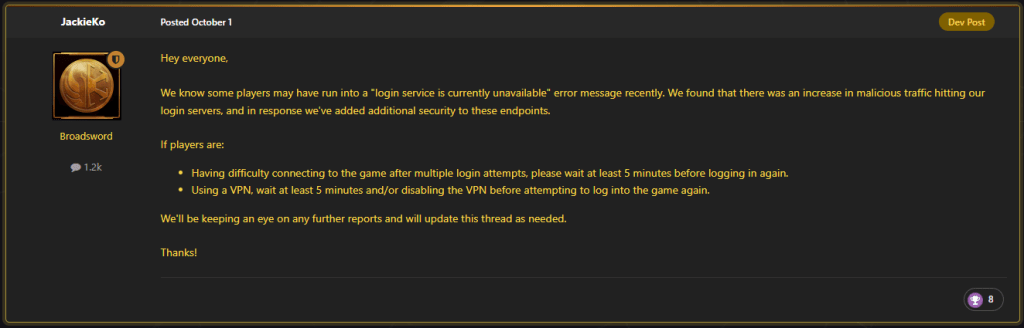
If you are using a VPN or Routing your IP through a different location or hub, first try turning off your VPN or your IP Routing and attempt to Log-In to SWTOR. If it works when your VPN is turned off, then it is a VPN issue causing the SWTOR login service to become unavailable.
If you are using a common VPN program or Public IP, it is possible that the VPN itself may have been blacklisted by SWTOR, especially if many players are using the same VPN program or connecting to the same Public IP.
I suggest first changing your VPN protocol or connection to any Public IP that you can find within the same timezone your live. If that works then you just need to remember to edit your VPN settings to play SWTOR.
Check SWTOR in Firewall or AntiVirus
There is a chance if you are playing SWTOR on a Windows 8.1, 10 or 11 computer that your Antivirus or Firewall may be blocking SWTOR from logging in which gives the Login Service is Unavailable bug.
How to Check your Firewall
Follow these steps to make sure that SWTOR is not blocked in your Action Center or Firewall Settings on a Windows 10 or 11 computer:
- Open the Control Panel
- Click System and Security
- Click Windows Firewall
- Click Allow a program through Windows Firewall
- Check the box for the program you want to allow
- Add Star Wars the Old Republic to the list of allowed programs
How to Check your Antivirus
You will need to check your Antivirus manufacturer’s website to see how you can make SWTOR Safe from your Antivirus Settings.
The following Antivirus Programs have been known to have issues with SWTOR in 2024:
Kaspersky Antivirus How to add Trusted Programs on Kaspersky
Norton Antivirus How to unblock a Program on Norton
McAfee Antivirus How to allow apps on McAfee
Avast Antivirus How to allow apps on Avast
Windows Defender How to check Defender exclusions
BitDefender How to allow apps on BitDefender Firewall
MalwareBytes How to allow exclusions on MalwareBytes
Change Your Computers DNS Settings
Another issue related to SWTOR’s Login Service being unavailable bug is the possibility that your Computer or Router/Internet Provider DNS is not able to reach the SWTOR login servers. This can be fixed by changing your computer’s DNS settings to route to Google’s DNS server.
Follow these steps to route your internet to Google’s DNS server on a Windows 10 or 11 computer:
- Open the Control Panel.
- Click Network and Internet > Network and Sharing Center > Change adapter settings.
- Select the connection for which you want to configure Google Public DNS. For example:
- To change the settings for an Ethernet connection, right-click the Ethernet interface and select Properties.
- To change the settings for a wireless connection, right-click the Wi-Fi interface and select Properties.
- Select the Networking tab. Under This connection uses the following items, select Internet Protocol Version 4 (TCP/IPv4) or Internet Protocol Version 6 (TCP/IPv6) and then click Properties.
- Click Advanced and select the DNS tab. If there are any DNS server IP addresses listed there, write them down for future reference, and remove them from this window.
- Click OK.
- Select Use the following DNS server addresses. If there are any IP addresses listed in the Preferred DNS server or Alternate DNS server, write them down for future reference.
- Replace those addresses with the IP addresses of the Google DNS servers:
- For IPv4:
8.8.8.8and/or8.8.4.4. - For IPv6:
2001:4860:4860::8888and/or2001:4860:4860::8844.
- For IPv4:
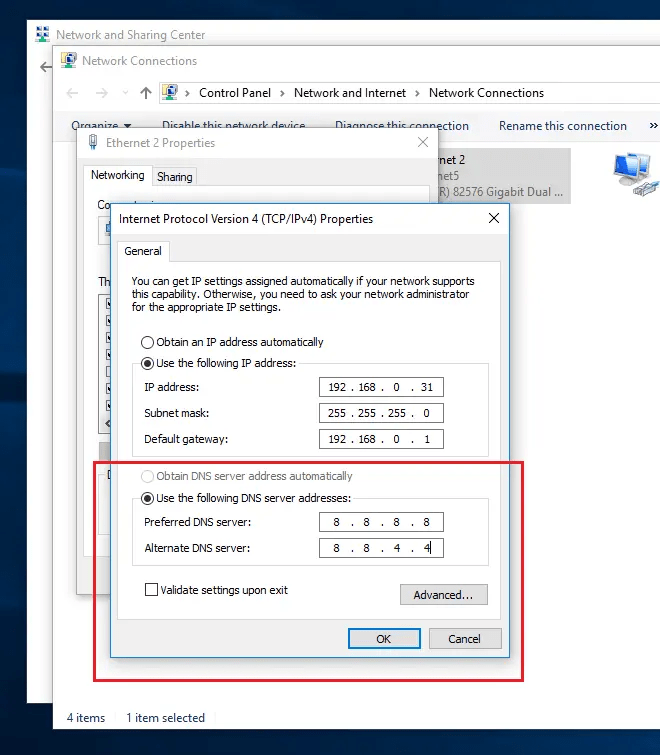
Google DNS routing provided directly from Google Support https://developers.google.com/speed/public-dns/docs/using
Disable XBOX Game Bar or DVR – Windows 10/11 Only
The XBOX Game Bar and DVR is an inbuilt app that is activated automatically in Windows 10 and Windows 11. It has been known to cause the Login Service is Unavailable bug to players on the SWTOR forums in 2024.
To disable the XBOX Game Bar follow these steps:
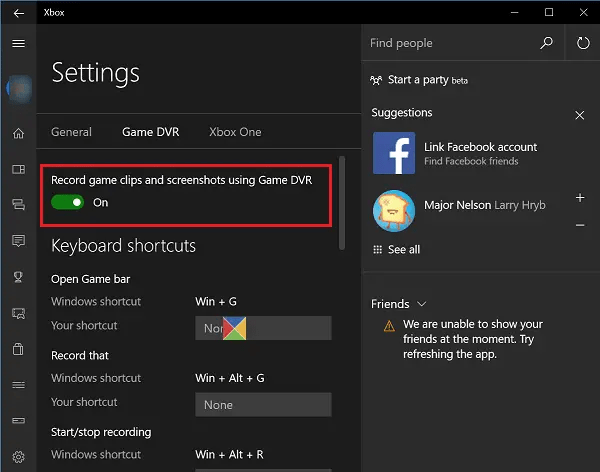
- Click the Windows Start menu on the taskbar.
- Select Settings.
- Select Gaming.
- Select Xbox Game Bar.
- Set the toggle to Off.
- Select Captures.
- Set the toggle for Record in the background while I’m playing to Off.
- Select Game Mode.
- Set the toggle for Game Mode to Off.
- Restart your PC and try to log-in to SWTOR again.
Repair Game Files
If all of the above solutions have not worked, you can make a final attempt to Repair your Game Files or reinstall SWTOR.
SWTOR.com Launcher
If you have installed SWTOR from the official swtor.com website or from EA/Origin, you can repair your game files by opening the launcher and clicking the settings icon in the corner of the window.
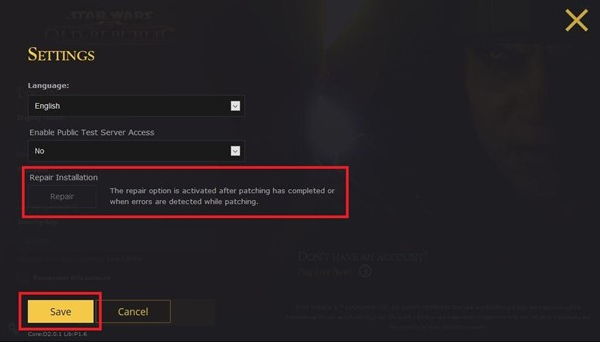
Once you have opened the Settings Menu, click the Repair Installation button and click Save. The SWTOR launcher will now attempt to verify and fix any broken game files that are stopping you from logging in.
Using SWTOR on Steam
If you are using Steam to play SWTOR, you can use Steam’s inbuilt game repair tool to Repair your installation of SWTOR.
Open Steam and find the game in your Steam Library, right click the game and click properties.
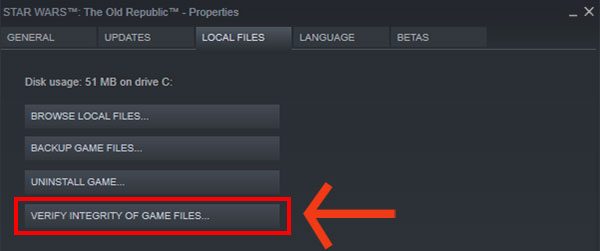
Find the tab that says Installed Files or Local Files and then click the Verify Integrity of Game Files button.
Steam will now attempt to verify and fix any broken game files that are stopping you from logging in.
Call or Email Support
If none of the above solutions work for you, it may be time to Call or Email SWTOR support.
F2P and Subscribers can email SWTOR support at the following address: support@swtor.com
If you choose to email SWTOR support, please note it may take up to 48-72 hours to recieve a reply. Make sure that the Email you use to contact support is the same email as your swtor account, and that you write your account Username inside the Email which helps support identify the SWTOR account with the issue.
I personally suggest calling SWTOR Support if you live in a country that offers phone support.
EA Helpdesk Phone Numbers
- USA: 1-(855)-345-2186
- UK: +44 (0)208 1969 890
- France: +33 (0) 4 81 68 10 51
- Germany: + 49 (0)221 8282 9212
- Other Countries

Enjoy my content and want to see more? You can support me by following me on Twitter or Join the Discord Community!
May the Force be with you ❤

If you liked my Content, consider tipping
to keep TodayinTOR.com Online!

Become a part of the SWTOR Community!
Read More
- SWTOR 2026 Roadmap
 Everything we know coming to SWTOR in 2026 including Story, DirectX 12 and 8.0 Expansion.
 - How to Make Credits in SWTOR 2026
 How to earn Millions of Credits as a F2P or Subscriber in Star Wars the Old Republic.
 - SWTOR PvP Season 9 Guide
 SWTOR PvP Season 9 Gladiators of the Outer Rim Guide, Rewards and Achievements.
 - SWTOR Dantooine Stronghold Guide
 How to unlock and ecorate the Dantooine Stronghold in SWTOR!
 - SWTOR Dantooine Dynamic Encounters Guide
 A complete Guide for every Dynamic Encounter on Dantooine in SWTOR.
 - SWTOR 7.8 Pursuit of Ruin Update News
 Everything about SWTOR 7.8 including Story, Dantooine and new content.
 - STAR WARS: The Old Republic – Enter the Fight Bundle
 Everything you need to know about the Limited-Time Enter the Fight Bundle in SWTOR.
 - SWTOR Feast of Prosperity Event Guide 2025
 This guide covers everything you need to know about the SWTOR Feast of Prosperity in 2025.
 Today in TOR
stupid when I have to get a new passcode every time I log in.
LikeLike
Set up a 2FA key for the game
LikeLike